Auracast Guide

What is Auracast?
Auracast is the most exciting thing to happen in hearing health this decade (in my humble opinion). It’s a one-to-many audio streaming device that lets your hearing aids tap into nearby sound systems using an Auracast Transmitter. Imagine being at a church, a lecture, or a play, and having the sound from the front streamed directly into your ears - that’s Auracast.
With a few quick clicks you can tap into streaming audio signals in theaters, lecture halls, public spaces, and even at home. No multi-hundred-dollar hearing aid accessories, no complex installations in the space - just your hearing aids and your phone app. In this blog I’ll walk you through how to connect to Auracast with your hearing aids.
What will you need? 1. Your hearing aids, 2. Your phone, 3. Your hearing aid smartphone app installed and updated, 4. An Auracast network for testing it out. But before we get started, let’s talk about the caveats - who can and can’t use Auracast as of today (September 2026).
Who Has Access to Auracast?
The good new is that more and more people are getting access to Auracast every day! What that looks like for you will depend on the brand and age of your hearing aids. Let’s start with brand. Two brands - Signia and Widex (note this also includes other devices made by these brands such as TruHearing) do not have Auracast built into their systems at this time, though the hardware is there - they just haven’t built out the interface. That means, if you have Widex or Signia hearing aids, you do not currently have access to Auracast, but should soon.
Slightly less frustratingly, Phonak finally released an Auracast assistant in their app for their newest EON hearing aids that just came out. I say frustrating because, while their previous Infinio generation will get Auracast capability, this likely won’t be for a few more months. Additionally, Phonak is the only manufacturer that only let’s you access Auracast networks through scanning a QR code at the venue, if one is available. There is no way to search for available networks in the area. Note, this is also the case for other brands produced by Phonak’s parent company, Sonova (Unitron, Sennheiser, and Hansaton).
Now for the real rockstars! ReSound, Oticon, and Starkey have been leading the field in Auracast since the beginning and, in my view, continue to do so. All three have Auracast assistants built into their apps, and allow for both QR code access and local network searches. I have used all three of these Auracast systems and have been impressed. Becasue these brands got in the Auracast game early, both their newest generation hearing aids, as well as their most recent generation are Auracast-enabled.
Who Doesn’t Have Access to Auracast
If you have hearing aids older than the last two generations of most brands (generally pre-2024), or fall into the other categories discussed above, then you are probably not going to be able to tap into Auracast (at least not easily). There are workarounds such as Auracast attachments for phones, and phone system Auracast assistants, but that is beyond the scope of this article. So the question then becomes, “Do I need new hearing aids?” Any my answer to that is, maybe but probably not. I know I’ve just spent the last half a page raving about Auracast, but for my average patient, they’re not in settings with Auracast enough to warrant the cost of new devices. If you’re in this category I recommend talking to your hearing health professional about workarounds to get the most out of listening in these settings until it is time to get new devices.
If you do have Auracast-ready hearing aids, though, find your hearing aid brand below and I’ll walk you through setup and use! If you don’t see your brand below and you use an Android (non-Apple) phone, scroll to the bottom to see how to use Android’s built-in Auracast assistant.
Hearing Aid App Access
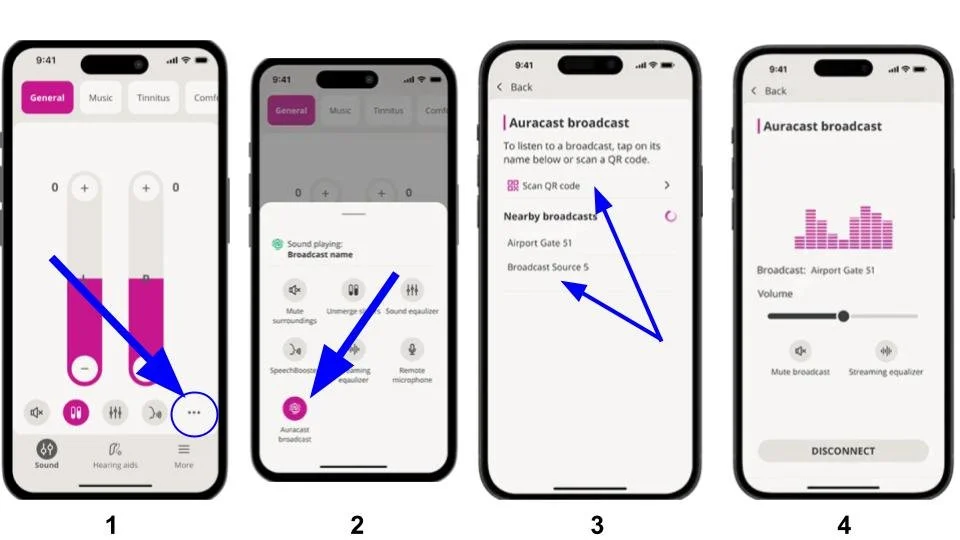
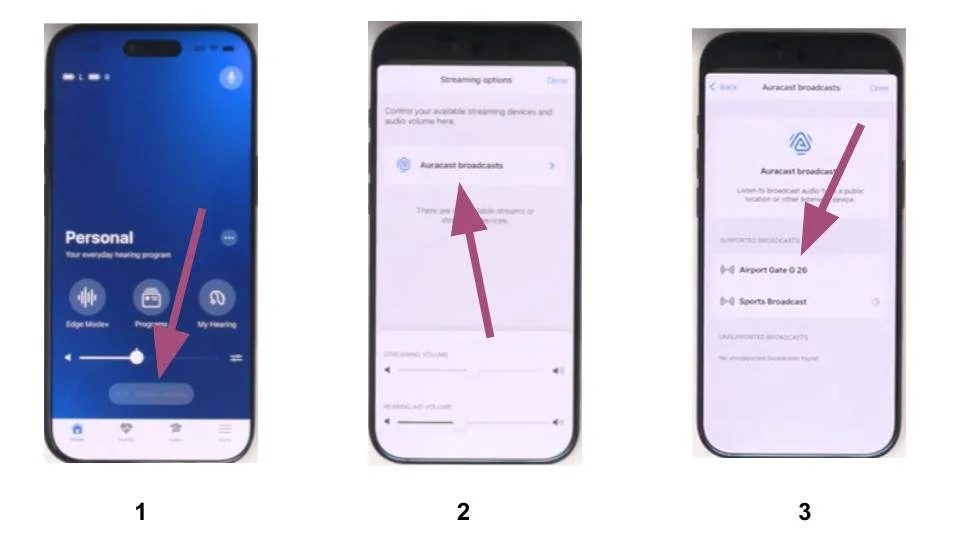
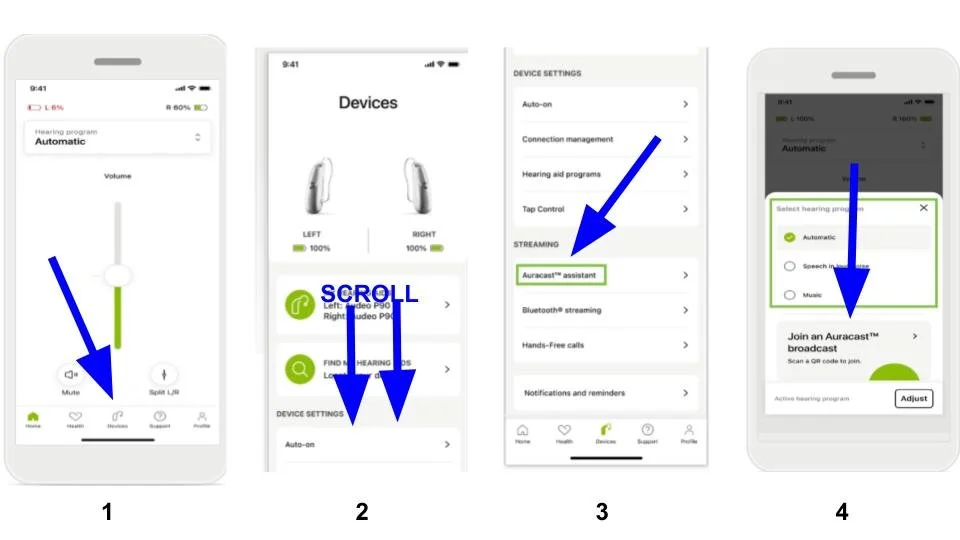
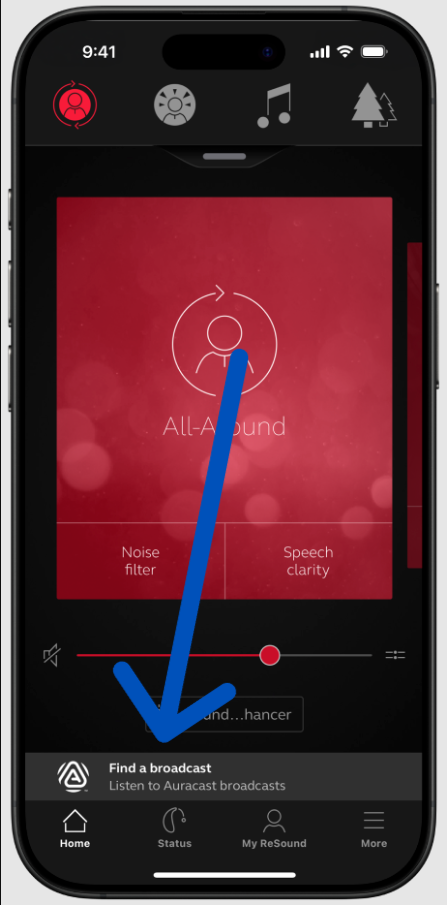
Open your hearing aid app and tap find the Auracast menu.
In the Auracast menu you should have the option to select from available nearby networks and/or scan a QR code (depending on brand).
Once connected you will be able to adjust the volume of the sound coming through the Auracast broadcast.
Oticon
Starkey
Phonak
ReSound
(More images will be added when available)
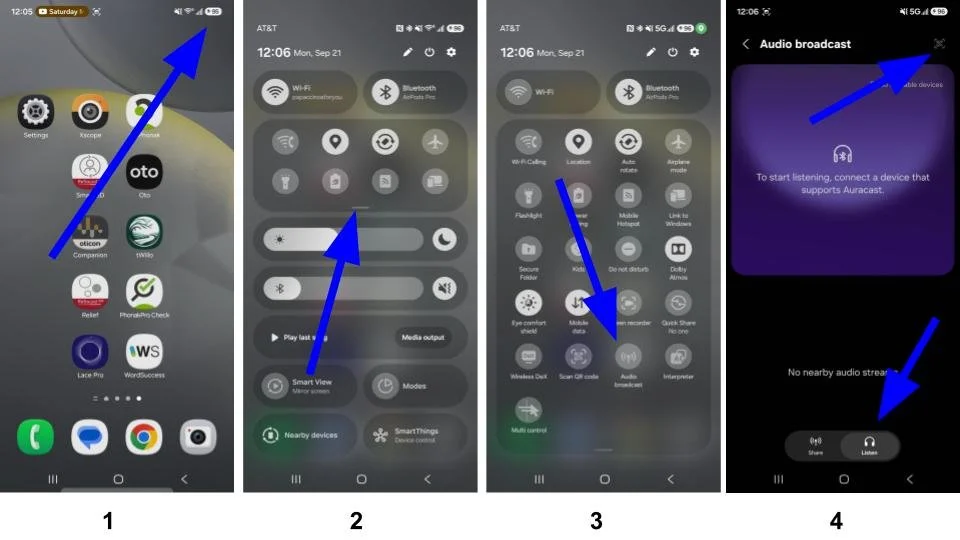
Android’s Built-In Auracast Assistant
Access your “Quick Settings Panel” by pulling down from the top right of your phone.
Drag down on the small bar above the brightness slider to see all the settings options.
Select “Audio Broadcast” toward the bottom of the list of options. “Audio Broadcast” is what they call Auracast.
This is the Auracast page. Tap “Listen at the bottom. If your hearing aids are connected to your phone you will see a list of available networks. You can also scan QR codes in the top right of the screen.